



Secure purchase
Your payments are protected with next-gen SSL encryption.
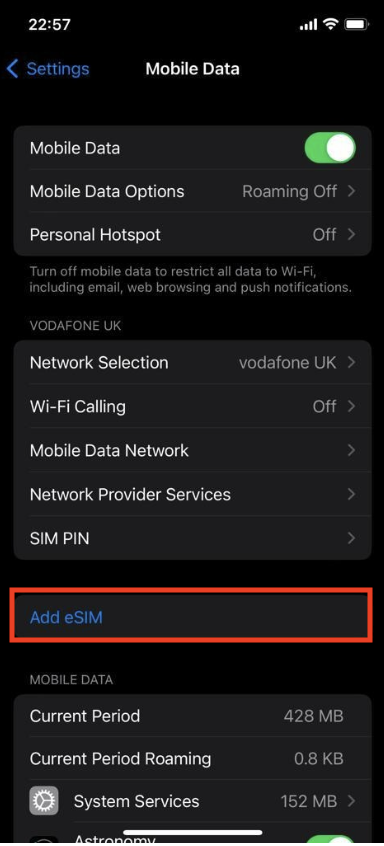
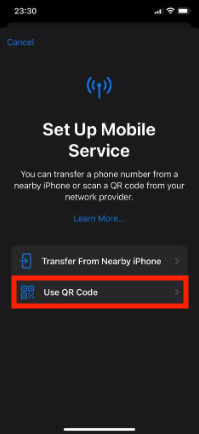
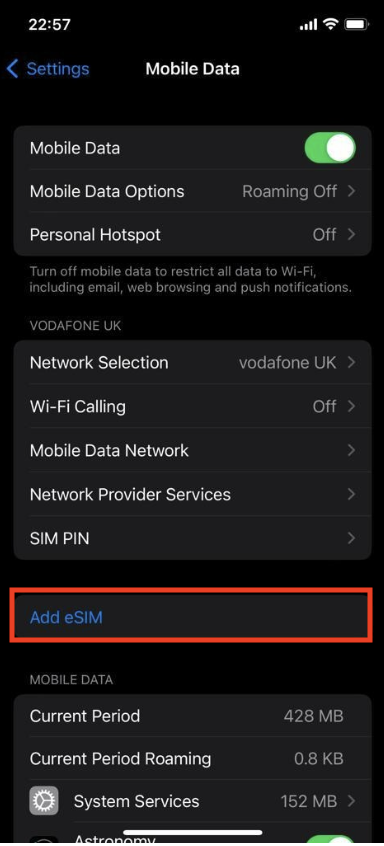
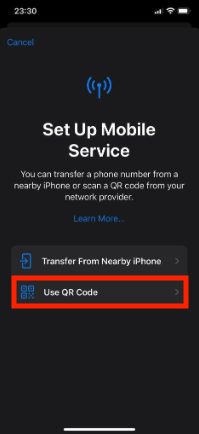
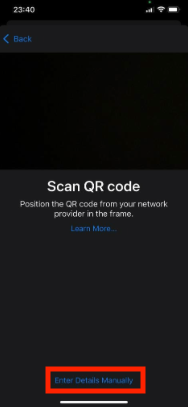
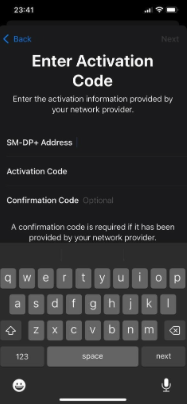
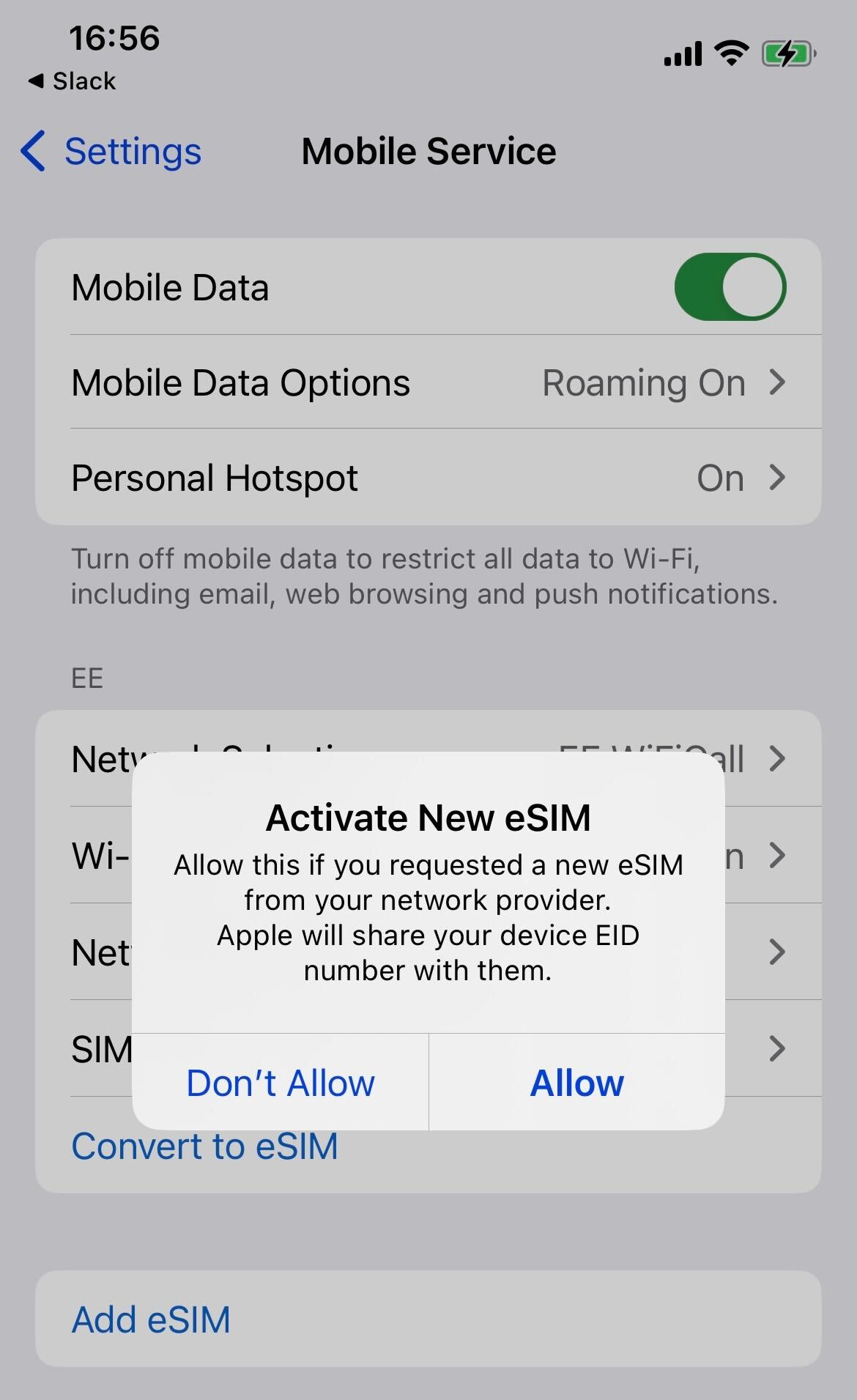
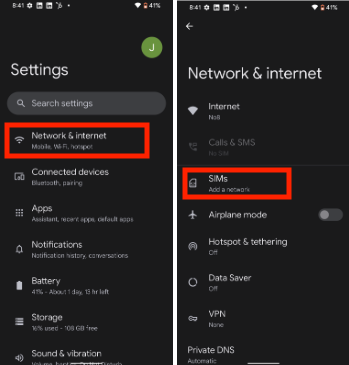
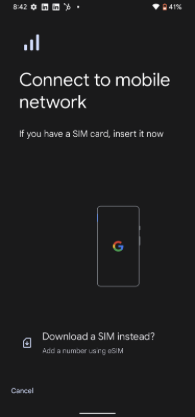
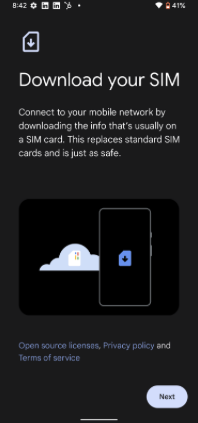
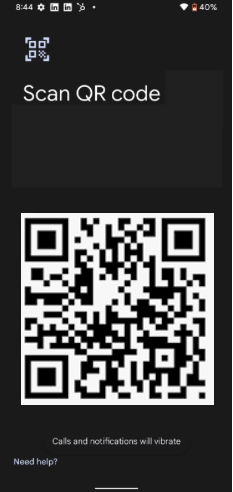
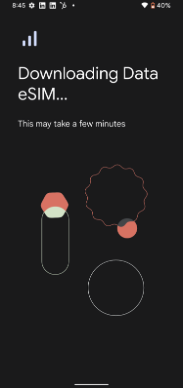
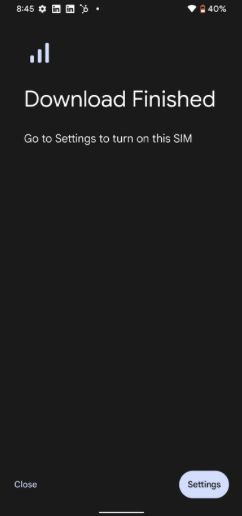
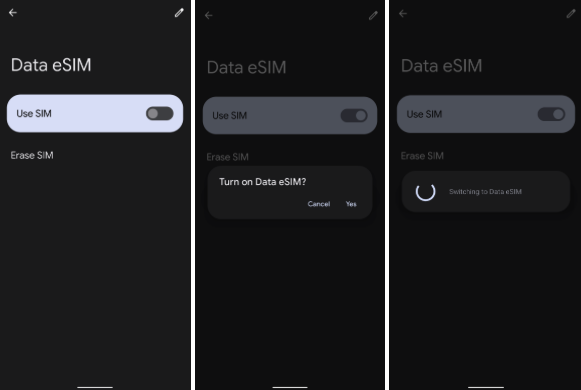
Follow these simple steps to install and activate your eSIM. Get connected in minutes!
Try these solutions:
This error usually means:
Check the following:
Unfortunately, eSIMs cannot be reinstalled once deleted. The QR code and activation code can only be used once for security reasons.
What to do: Contact our support team immediately. Depending on your situation, we may be able to issue a replacement or refund.
No, each eSIM can only be installed on one device at a time. The installation process binds the eSIM to your specific device.
If you need to use data on multiple devices, you will need to purchase separate eSIMs for each device.
Our support team is here to assist you 24/7. Don't hesitate to reach out!
Your payments are protected with next-gen SSL encryption.

Get your eSIM instantly by email after purchase.

If your eSIM doesn't work, we will refund you—no questions asked.
© 2025 Esimplanner